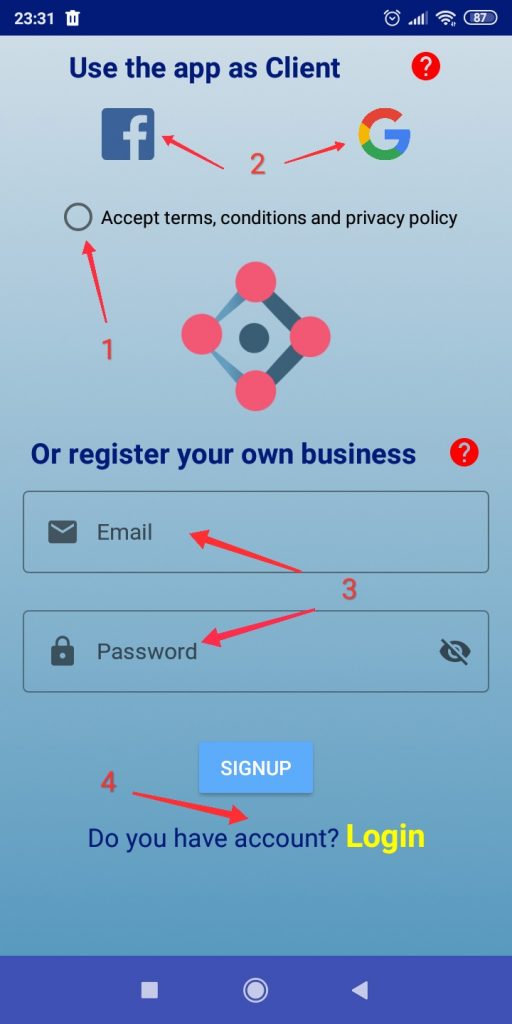
Register screen
After downloading the application, you will have two different options to use it: as a CLIENT of nearby businesses or as a BUSINESS OWNER.
1 – Accep terms, conditions and privacy policy
You will need a Facebook or a Gmail account (to use the app as CLIENT) or a valid email account (gmail account recommended) if your´re going to use the app as a business owner.
2 – Access as a CLIENT
This option will allow you to use the app to contact nearby businesses, access their catalog and view offers in real time.
3 – Access as Business OWNER: register your POS
In case of using the app as a BUSINESS OWNER, enter the name of your store, a valid email and password.
Fill in the three fields correctly and, after a satisfactory registration, access the most complete point of sale, simple to use and powerful that you will find.
4 – Do you have account? Already registered?
As BUSINESS OWNER, Use this option to navigate “Login Screen” if you already have a registered account.
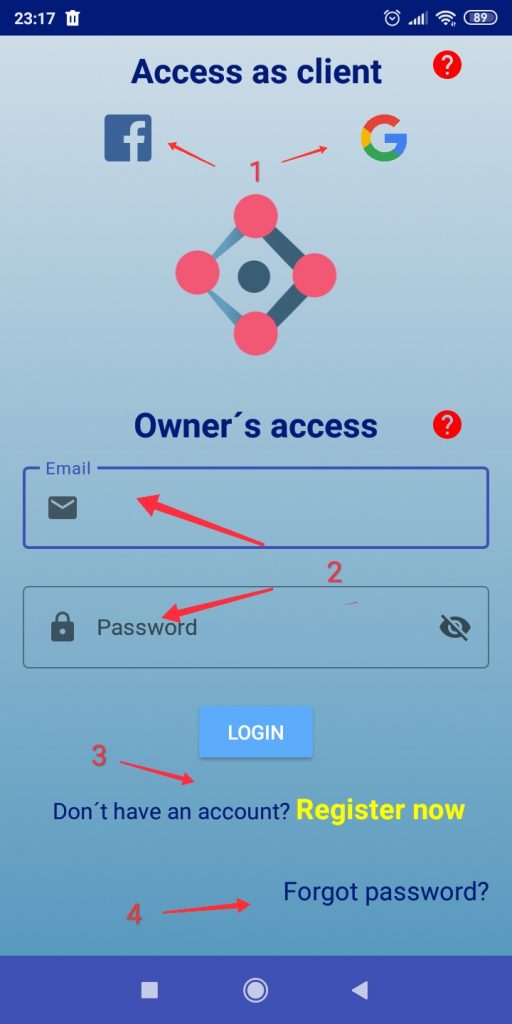
Login screen
1 – Login as CLIENT
Use your registered Facebook or Gmail account to login My Favourite Shop.
2 – Login as BUSINESS OWNER
Use your registered email and password to login the app.
3 – Navigate to Register Screen
If you don’t have a registered account yet, you can register your business on the Register screen.
4 – Forgot password?
You can also retrieve your password if you have forgotten it. The system will send you a message to your email for change/reeboot your account password.
After successful registration, we will see how easy it is to configure our POS and the many options that My Favorite Shop offers you. Let’s start!
CLIENT quick guide BUSINESS OWNER quick guide Google Play Download